
16.07.2026
Product Page: Price, Variants, and Purchase Testing
An online store's product page should answer three questions: what exactly am I buying, how much does it cost, and how will I receive my order? An attractive photo is not enough if selecting a color does not update the price, availability is unclear, and a different configuration ends up in the cart.
Below are a page structure and seven practical checks. You can go through them before launching a store, after changing the theme or after importing a catalog. Test on a copy of the website with test products: the checks must not create real payments, customer emails or stock reservations.
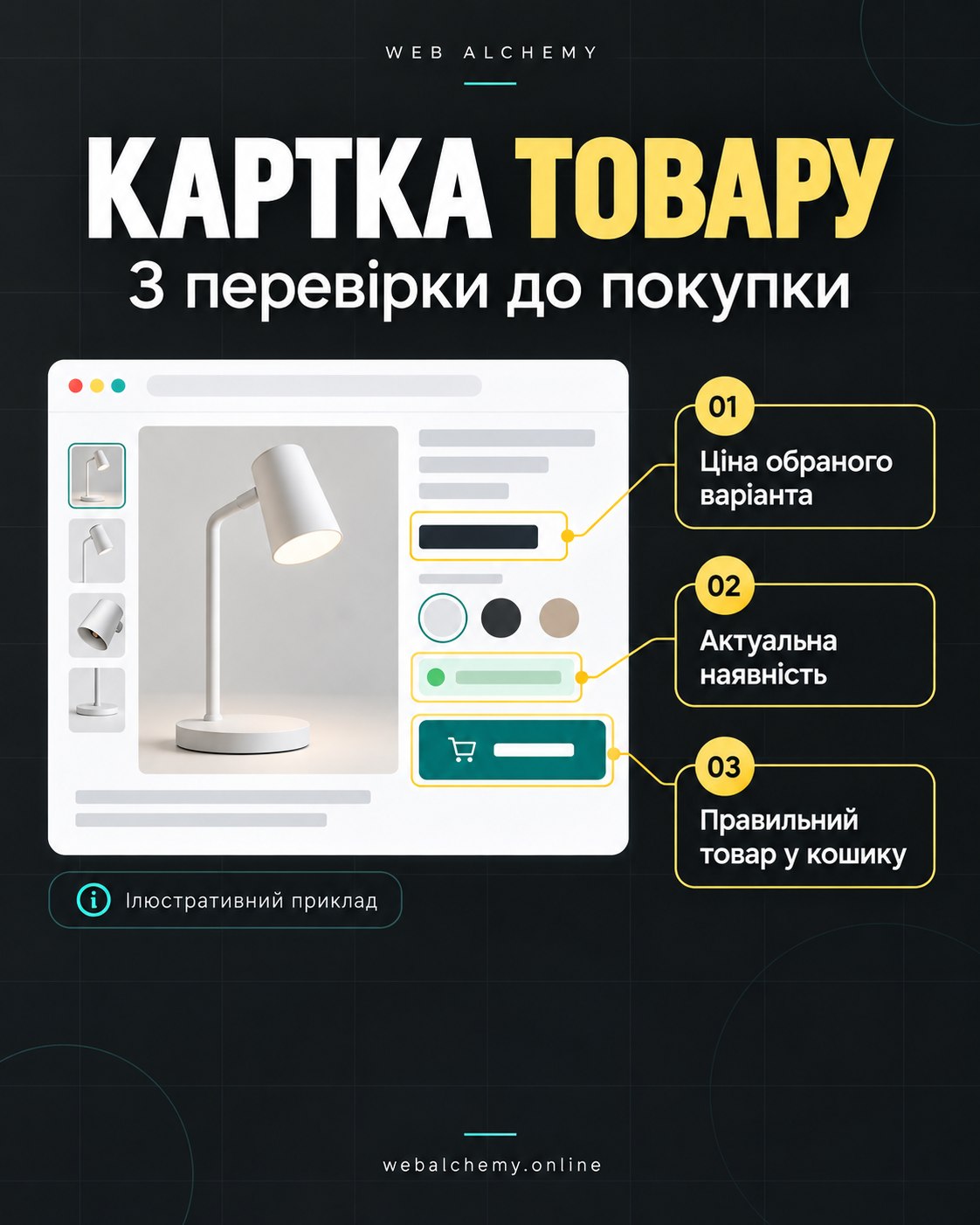
What to Show Buyers Next to the Purchase Button
- The Name and Specific Model. Buyers need to distinguish the product from similar items. For equipment, light fixtures or components, the SKU and compatibility are important.
- Photos of This Exact Product. Overall appearance, details, scale, and package contents. A photo must not imply that an accessory is included when it is not.
- The price of the selected option. After selecting a size, color, or configuration, it should be clear what amount will be added to the cart.
- Availability and the next step. “In stock”, “Available to order” and “Out of stock” are different states. For preorders, explain the terms rather than presenting an ordinary immediate purchase without clarification.
- Quantity and a prominent action button. If an option must be selected, show which one. Do not make users search for the reason a button is disabled.
- Delivery and Payment. State the available methods and known terms. If shipping costs depend on the address, explain where they will be calculated; do not call shipping free when its cost is unknown.
You can place specifications, usage descriptions, instructions, package contents, and warranty and return terms below. Show only genuine reviews. An empty section with no ratings is more honest than an invented rating.
A product variation is more than a different button color
In WooCommerce, a variable product can have a separate price, stock level, and image for each variation. This is described in the Variable Products documentation. Store owners should check not only how the selector looks but also the data it changes.
Learning example: a desk lamp
Imagine two configurations: a lamp without a bulb and a set with a bulb. This is a hypothetical example, not an offer from our store. Each configuration may have a different SKU, price, and stock level. After switching, the buyer should see the current amount and set contents; the cart must retain the exact options selected.
Using the same photo is acceptable if the variants really look identical. But differences in package contents must be explained in text. The absence of a second photo does not fix an incorrect name or price.
Seven product page testing scenarios
1. The shopper has not selected a required option yet
Action: open the page without a preselected option and try adding the product. Expected: the website clearly asks users to select the required size or configuration and does not add an arbitrary variant. If a default variant is already selected, that selection must be visible.
2. The buyer switches to an option with a different price
Action: select two variants in sequence, then add the second to the cart. Expected: the option name, price, quantity and SKU match the selection. Check the unit price separately from the total for multiple units, discounts and shipping.
3. The selected variation is out of stock
Action: on the test copy, set the stock of one variation to zero. Expected: it cannot be purchased as an in-stock item. If the store allows orders when stock is unavailable, the buyer sees the corresponding status and terms. Other available options remain purchasable.
4. Prices or stock have just been imported
Action: after updating, check the category, product page and cart in a new session. Expected: the data is consistent; an old cache does not show a previous price as current. Before importing, check that SKUs and variations match. A separate file preparation procedure is in the article on product imports from Excel and CSV.
5. The shopper uses a phone
Action: open a long product name, gallery, option list, and error message on a narrow screen. Expected: text and prices do not overflow; the photo close control is accessible; the floating chat does not cover the buy button. The result is visible after changing the quantity.
6. The shopper uses only a keyboard
Action: navigate the page with Tab, select options, and add the product. Expected: the current focus is visible, elements have clear names, and success or error messages are available without hovering. The gallery can be closed without trapping focus.
7. The Cart Should Confirm Everything Is Correct
Action: add a product, change the quantity and return to the catalog. Expected: the cart contains the correct variant and amount; removal works; an unavailable quantity produces a clear message. A double-click should not silently produce an unexpected result. Payments are tested separately using the payment service's test mode.
What to check for Google
The page needs a meaningful title and description, accessible images, and consistent product data. Product markup helps convey product details, price, and availability to search engines, but it does not guarantee a rich result or a search ranking. The format depends on whether the product can be purchased on the page; the requirements are listed in Google’s Product documentation.
Check what already generates the markup: the store, theme, or SEO plugin. Do not add a second, conflicting block just for “more SEO”. The price, currency, availability, and reviews in the markup must match the actual product visible on the page. This article is a guide, not a page selling a lamp, so it does not need Product markup for its educational example.
How to Document a Problem for a Developer
For each error, record the URL, SKU, selected options, device, reproduction steps, and expected result. Add a screenshot without personal data. “After selecting black, the cart still shows white” is more useful than “the product page does not sell”.
If people view a page but do not add the product to the cart, first check the analytics accuracy and the purchase flow itself. Do not draw conclusions about the design from just a few visits. Fixing errors is not a promise of a particular increase in sales.
What you can entrust to Web Alchemy
We can review a product page on WordPress/WooCommerce or OpenCart, agree on its structure, and improve option selection, mobile display, and data exchange. An example of our work with a lighting catalog: the Elit Svitlo project. The scope of work depends on your store’s condition, not a universal template.
More about website and online store development and estimated cost. For an estimate, send a link to the store and an example of a problematic product. There is no need to send access credentials or buyer data in public messages.